
192.168.100.1 Login Admin – Router Login
Enter 192.168.100.1 into a browser and you should be in the fastest way to managing a home router, yet for many it results in a blank page, unrecognised logins or passwords that simply won’t work. The silver lining is that these are usually easy problems to fix.
192.168.100.1 Router Login, Password and Troubleshooting Guide
You want to change the password for your WiFi network, update your network name or check what you want to adjust about your router, but you don’t know how to access the administration page. This is where 192.168.100.1 may help. It is a private IPv4 address that is used for the local gateway by some cable modems, some modems and routers.
If your router is set to use this address, you can open a web browser and type it in to get to the device’s management interface. To understand what 192.168.100.1 is, how to access it, how to locate the username and password on your router or modem, what you can do after you log in, and what to do if you cannot log in.
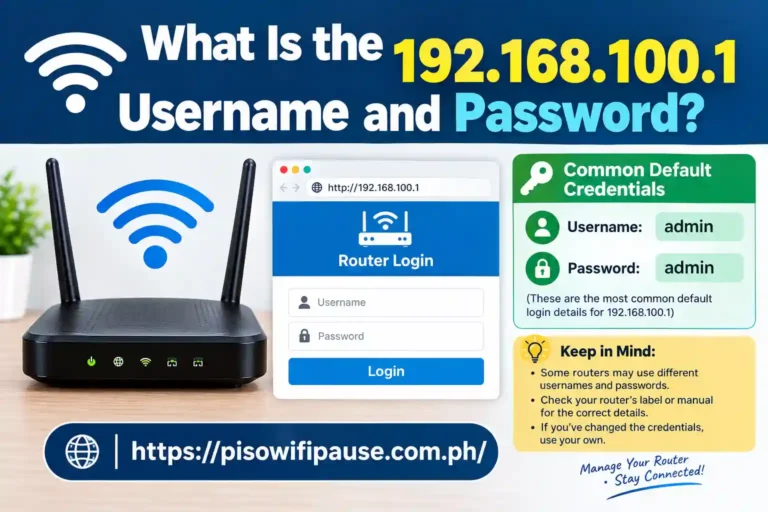
Default logins for 192.168.100.1
| IP Address | 192.168.100.1 |
| Username | admin |
| Password | admin |
Understanding 192.168.100.1 Before Logging In
192.168.100.1 is a private IPv4 address that is used for local networks. The entire 192.168.0.0/16 is reserved by the Internet Assigned Numbers Authority (IANA) for private use and therefore these addresses are not normally routed on the public Internet.
The management address 192.168.100.1 is a local address used by some networking manufacturers. It is available on some cable modem devices and router devices from manufacturer brands like NETGEAR, TP-Link, Motorola, Zyxel, Arris, Huawei, etc. but their exact address varies according to cable modems and their firmware versions.
Please note that this is not the address used by all routers. Some devices use 192.168.0.1 or 192.168.1.1 instead.
How To Log In to 192.168.100.1?
First, make sure that the computer, phone or tablet is connected to the router’s WiFi network. The computer can also be plugged in directly to the router with an Ethernet cable.
Use a web browser to open http://192.168.100.1 in the browser’s address bar. If the router is using this address, the login page for the router should show. You can then type in the administrator username and password that are given for your specific device. If the website doesn’t load, you might have a different local IP address in your router or you might be on a different network.
What Is the 192.168.100.1 Username and Password?
Login information depends on the manufacturer, model, firmware and ISP setup. Some older routers and modems might have a default username and password (admin for both), others could have a different password (may be printed on the product label).
When using a number of different combinations, verify the sticker on the router, the user’s manual or the manufacturer’s support documentation.
What You Can Do After 192.168.100.1 Login?
Once you’ve been able to log in to 192.168.100.1, the choices at your disposal will vary based on the specific router or modem you have.
There are many devices that offer options for changing the name and password for the WiFi, setting up the wireless security, seeing the connected devices, LAN settings, DNS options and information about the network. Certain modem interfaces may have fewer controls and most likely contain only connection information and status information. You can also have limited menus or settings on your equipment provided by the ISP.
Why 192.168.100.1 May Not Open?
If 192.168.100.1 isn’t working, there are some possibilities that might be causing this issue. One option is that the address is not the one of your router’s gateway address.
Test the network connection and ensure that the default gateway is correct on the computer. Be sure your device is on the same router you are attempting to manage. Look for typographical errors in the address as well. The format is:192.168.l00.1. If this is correct, power down your router and then log in again. Alternatively, you may navigate to the website with a different browser or in private browsing mode.
How To Factory Reset the Router?
It might be necessary to reset the router to its factory settings if the password for the administrator is not found. On most routers, you’ll find a small Reset button on the back or bottom of the router.
This varies depending on the model. You will have to reset and set it up again after the reset. This may involve setting up a new admin password, configuring the WiFi name, setting a WiFi password and resetting other network settings.
When performing a factory reset, it will also wipe away any port forwarding settings, custom DNS settings, parental controls and other settings that may have been enabled. Make sure you know what will be lost before you do the reset.
Improve Router Security After Login
If you can change the router password and it is still set to the default, then make a strong and unique password. Use and/or a password different from the WiFi password if possible.
Additionally, you’ll have to find out if there is a router firmware update for your particular model of the router. Security updates, bug fixes and performance enhancements are all possible types of firmware updates.
It’s also a good idea to check the devices list periodically. When you see a device that you don’t recognize, check into it and secure your WiFi network if not.
Conclusion
Compatible routers and modems can allow for easy access to the local administration page at 192.168.100.1. As part of this interface, users can be able to alter WiFi settings, configure security options, view information on the network and configure other supported features.
Don’t assume that the router is broken if it doesn’t start up right away. First, make sure that you’re connected to the right network and that you’re checking the default gateway. Before resetting to factory settings, check if there is an official recovery solution if you don’t know the administrator password.
When you can do this again, change your administrator password, check your wireless security and update your router’s firmware if any updates are available.
FAQs
Can I access 192.168.100.1 from my phone?
Yes. If the router’s management address is 192.168.100.1 and the phone is logged on to the router’s wireless network, simply go into your phone’s browser and type in the router’s address.
Is 192.168.100.1 a public IP address?
192.168.100.1 is a private IPv4 address, belonging to the 192.168.0.0/16 network. It is not usually available on the public Internet.
What should I do if I forget my router admin password?
See the router manual or the router manufacturer’s support documents to find a password recovery key. A factory reset might be necessary if recovery is not available, but it will remove customizations.