WiFi Range Extension Guide
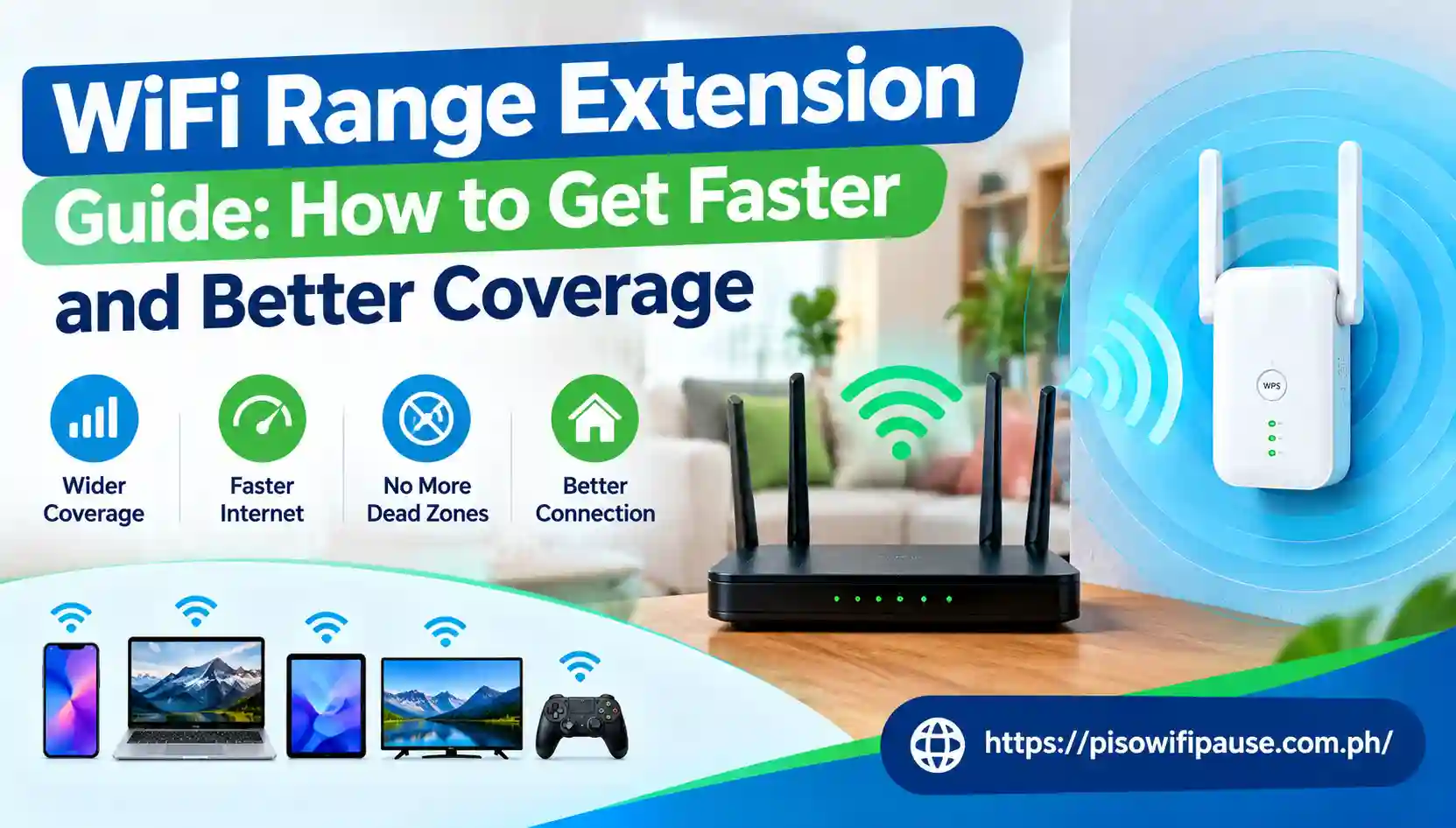
WiFi Range Extension Guide: How to Get Faster and Better Coverage
Even basic Internet activities can be tedious in the presence of poor wireless reception. A fast internet service can be installed but when you change rooms, it may slow down. There are more and more homes being connected to more devices than ever, such as phones, laptops, smart TVs, cameras, gaming consoles, smart devices, etc. This WiFi Range Extension Guide will show you how to test your network, how to relocate your router, which specific Wi-Fi band is better to use, how to use an extender, how to increase the number of access points and when a mesh network makes more sense.
Check Your Wi-Fi First
Make sure to verify the Wi-Fi signal from various locations. If the Wi-Fi signal is strong in one room, yet weak in another distant room, you will likely need to invest in enhancing the Wi-Fi signal strength, not buying a faster internet plan. One of the easiest and least expensive methods to extend the range of your Wi-Fi network is to move your router. Avoid putting the router in a corner, a dark corner or a closed area. In addition, it may be helpful to keep it elevated from the ground.
Choose the Right Wi-Fi Band
Most recent routers have 2.4 GHz and 5 GHz Wi-Fi bands. There are certain strengths to each band. In general, the 2.4 GHz frequency range is better at penetrating walls and has a longer range. The 5 GHz band will generally offer higher speeds, but with a shorter range. Best suited to use when your device is not far away from the router. WiFi Range Extension improves wireless coverage in weak-signal areas.
Use a Wi-Fi extender
If there are weak signals in one or two areas of your home, a Wi-Fi extender might be able to help. It amplifies the wireless signal from your primary router and transmits the signal to extend its range into your home. Where you place the extender is important. Avoid placing it in the dead zone, as it may not be able to receive a good signal from the router. Rather use it between the router and the poor coverage area. WiFi Range Extension provides broader WiFi coverage for everyday internet use.
Add an Access Point and Powerline Adapters
An access point is used to connect to the main network via an Ethernet cable and then serve the Piso WiFi in a separate area. The network connection between the main router and access point is wired, which could offer more stable performance than a wireless repeater.
Powerline adapters connect network data between the locations via your home’s electrical wiring. Typically, one of the adapters is installed close to the router and the other in the area where a more powerful connection to the router is required. WiFi Range Extension the second adapter can offer either Ethernet or Wi-Fi. WiFi Range Extension can help overcome walls and distance-related signal issues.
Upgrade Your Router
Older routers might not be as effective as newer routers at supporting the connection of multiple devices. A modern router can enhance the performance of networks and give them support for new Wi-Fi standards. Wi-Fi 6 is still a great option for homes in 2026 and Wi-Fi 6E introduces the new 6 GHz band if the router and devices are compatible. For those who desire the most up-to-date Wi-Fi technology, Wi-Fi 7 is also provided.
Choose a Mesh System
For homes or properties larger than a single mesh or with multiple low coverage points, this is a good option. The mesh network is an alternative technology that makes use of several nodes to cover various areas of the house, rather than a single router. The devices are connected in a mesh network, which means that they form a single network and your phone or laptop can stay connected while you move around from room to room.
Reduce Wireless Interference
Poor Wi-Fi isn’t always due to distance. There can also be interference among the different wireless signals that impact your connection. The wireless performance can be affected by nearby wireless networks, household electronics, large objects, and thick walls. Store the router in an open space and clear of unneeded impediments. Your router may have channel auto or automatic channel selection; it could select a less congested channel.
Test Your Connection Again & WiFi Range Extension
Once you have made changes, test the Wi-Fi where it was previously difficult. Don’t take the Wi-Fi hotspot indication from your cell phone as the sole indicator. A strong signal doesn’t necessarily indicate a fast Internet speed. Test your speed and analyze the results before and after you make changes. You may not have a fast internet service or your router or cables could be causing the issue or there could be network congestion if you are still having slow internet when near the router. WiFi Range Extension works by expanding the reach of your existing network.
Conclusion
Getting the Wi-Fi range is not always a costly solution. Take some basic precautions adjust the position of the router, select the appropriate frequency band and minimise interference. A Wi-Fi extender, wired access point, powerline adapter or mesh Wi-Fi system can be used to extend coverage if these changes are not sufficient. Mesh systems can be a good choice for larger homes, as they can cover multiple rooms, while wired access points are a good option when reliability is crucial. WiFi Range Extension is useful for phones, laptops, smart TVs, and other devices.
FAQs
How can I extend my Wi-Fi range?
It’s generally the simplest to relocate the router to a central, open, elevated spot. It’s easy to install and can enhance coverage in multiple areas of your house.
Is a mesh system better than a Wi-Fi extender?
A mesh Wi-Fi network can offer better coverage than a Wi-Fi extender for a large home or for homes with more levels. If you just need to add some coverage in one small area, it may be sufficient to use an extender.
Should I use 5 GHz or 2.4 GHz for a distant room?
Yes. Overall, 2.4 GHz has a longer range and will penetrate walls more effectively than 5 GHz.