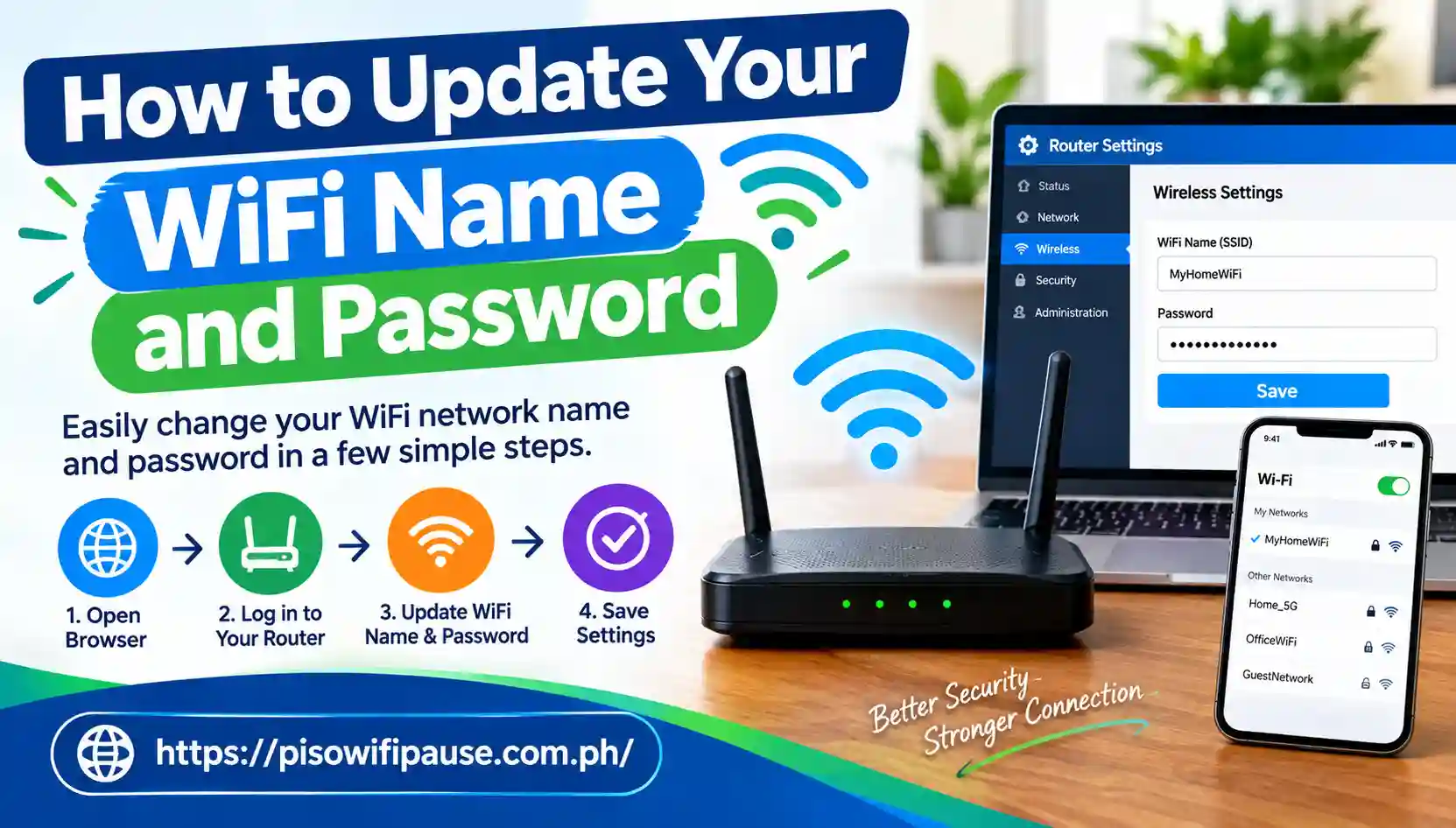
How to Update Your WiFi Name and Password
How to Update Your WiFi Name and Password?
Your WiFi network is for more than just your phone and laptop. Smart TVs, security cameras, printers, gaming consoles, speakers and other connected devices can be installed in today’s homes. With the growing number of devices that rely on WiFi, it’s more important than ever to keep your wireless network secure. One simple and easy way to enhance security is to change the name and password of the WiFi network. All you have to do is log into your router’s admin panel and change the wireless settings. In this guide, you’ll learn how to change the name and password of your WiFi from the router admin panel. Update Your WiFi Name and Password to personalize your wireless network.
Connect Your Device to the Router
Connect the computer or cell phone to the router before making any changes. If the connection via WiFi is not possible, it is recommended to connect the computer via an Ethernet cable directly to the router. A wired connection may also be beneficial when you have forgotten the password of your WiFi and want to connect to the router without logging into the wireless network. Update Your WiFi Name and Password after changing or resetting your router settings.
Find Your Router IP Address
The local IP address for the router is required to access the router’s admin panel. It is easily accessed on Windows. Let’s open the Command Prompt and type ipconfig. Press Enter and you’ll see Default Gateway listed under your active connection. Mac users can go to System Settings, click on Network, select the active connection and look at the Router address under the Network details.
If you have the IP address for the router, launch the Web browser. Enter the IP address into the browser’s address bar. Avoid entering the address into Google or another search engine. Once you’ve entered the correct address, you should see the login page of the router.
Log In to Your Router
Type in the router administrator’s name and password. This information is used to navigate to the router’s settings. If none of the above is true, then refer to the label, manual or official manufacturer’s instructions for the router. If you do not remember the admin password, it may be possible to retrieve it from your router before you resort to a factory reset.
Once logged in, you should find a Wireless, WiFi, Wireless Settings or Network Settings area. Search for SSID/Network Name. Delete the existing name and enter your new WiFi name. Pick a memorable name. Update Your WiFi Name and Password through your router’s admin settings.
Create a Strong WiFi Password & Update Your WiFi Name and Password
Locate the WiFi Password, Password, Passphrase or Security Key field. Write down your new password (carefully). The password should be long and hard to guess for other people. Do not use easy-to-remember passwords such as your name, birthday, phone number, address or other personal information. It’s also important to not use the same password for your WiFi and other key online accounts. Update Your WiFi Name and Password regularly to maintain a safer wireless connection.
Check the WiFi Security Type
Your router could also include a security setting that allows you to set the level of security for the wireless connections. WPA3 is a newer security setting that is supported by some routers and devices. But there are some older devices that may not be able to use WPA3. If so, a matching WPA2 setting might be required.
You should now see a button like Save, Apply or Submit once you have typed in the new WiFi name and password. Tap the button to save the changes. It can take a few seconds to update the wireless network with the router. Update Your WiFi Name and Password using a secure and easy-to-remember combination.
Fix Common Login Problems
The admin panel of the router does not appear at times. If it occurs, ensure you are on the right network first. Re-check the Default Gateway. You may have typed in an incorrect IP address. If the login page still does not show up, you may want to use another browser or temporarily disable a VPN service. You can also restart the router and see if you can do it again.
If the password for the administrator is not remembered, check the router’s manufacturer for recovery instructions. A factory reset should be used as a last resort.
Conclusion
For anyone responsible for the home or office network, it is important to know how to change the WiFi name and password from the router admin panel. First, connecting to the router is relatively easy; after gaining access, you will find that the IP address is listed. Open the admin panel, enter the password, then configure the SSID, password and click Save.
Use a strong and unique password; don’t include personal information in the WiFi name and use a modern security option like WPA3 if possible. Once you have saved the settings, reconnect all of your devices to the new Piso WiFi Pause network using the new settings.
FAQs
Can I change my WiFi name and password from my phone?
Yes. If your router has a web-based admin panel or a mobile app, you can update the WiFi name and password from your mobile device.
What is a WiFi name or SSID?
The WiFi name is also known as the SSID. It is the name that appears in your search for wireless networks in the vicinity. It can be renamed to any name you like.
What happens if I forget my new WiFi password?
If you can still get into the router via another connected device, you can check or edit the wireless password in the router’s admin panel. If it is not possible to reach the router, a factory reset might be necessary, but it should only be done as a last resort as it will reset the router to its default settings.