Router Setup Page
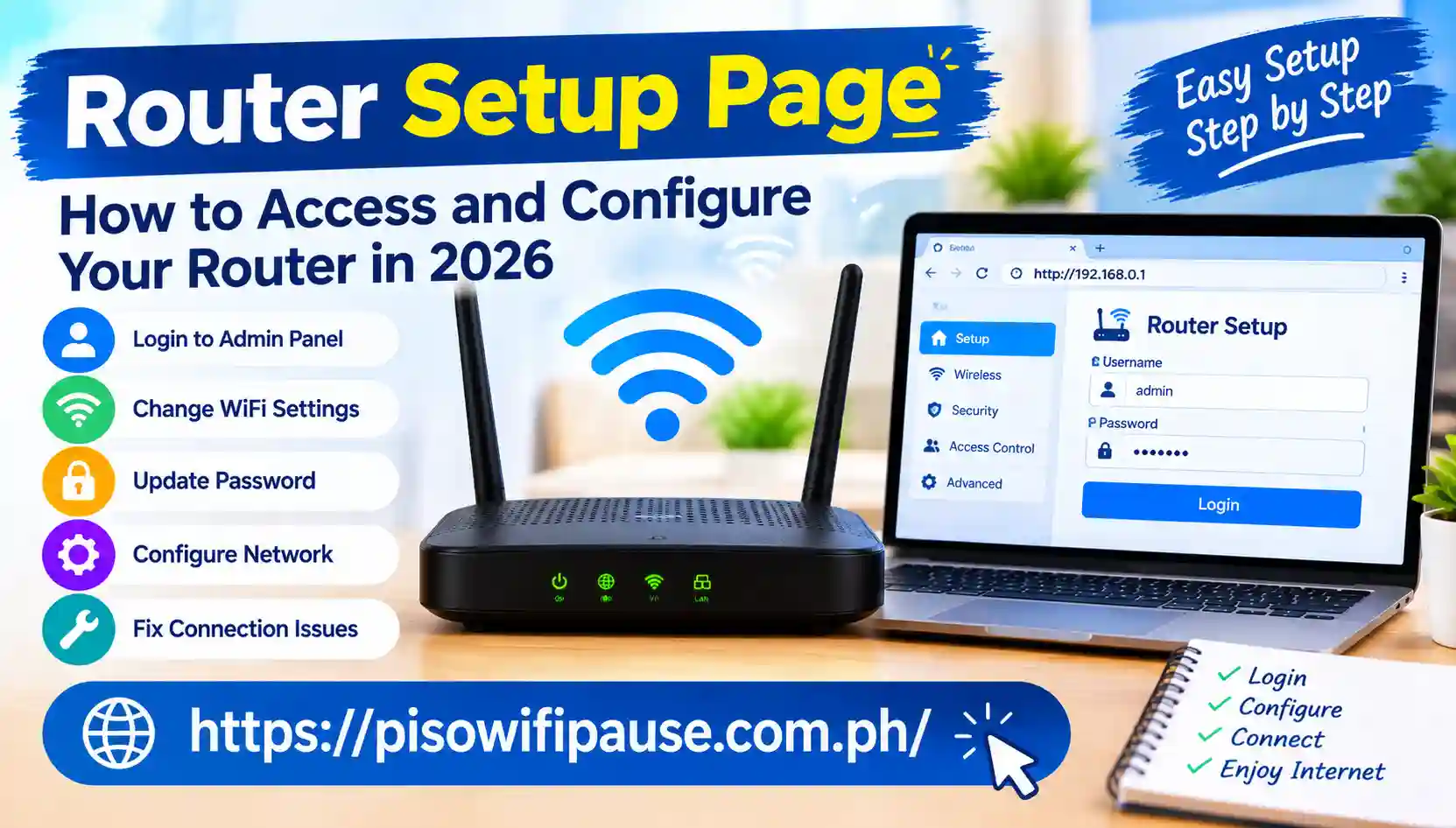
Router Setup Page: How to Access and Configure Your Router in 2026
It’s not difficult to set up a new router. Most modern routers have easy-to-use mobile apps, web configuration tools and auto-configuration capabilities that make it easier than ever to configure. The most essential thing to know is how to open the router’s Web page to set the Internet connection, make a Wi-Fi network, alter passwords, update the firmware and manage security settings.
Browser-based setup and mobile apps will still be supported by manufacturers like TP-Link in 2026. The compatibility of the TP-Link routers enables them to typically be accessed via tplinkwifi.net or 192.168.0.1. (tp-link.com)
Installing a router for the first time or replacing that of an older model is basically the same procedure. This guide will discuss how to do it in simple steps as well as some common issues you might encounter.
What the Router Setup Page Does
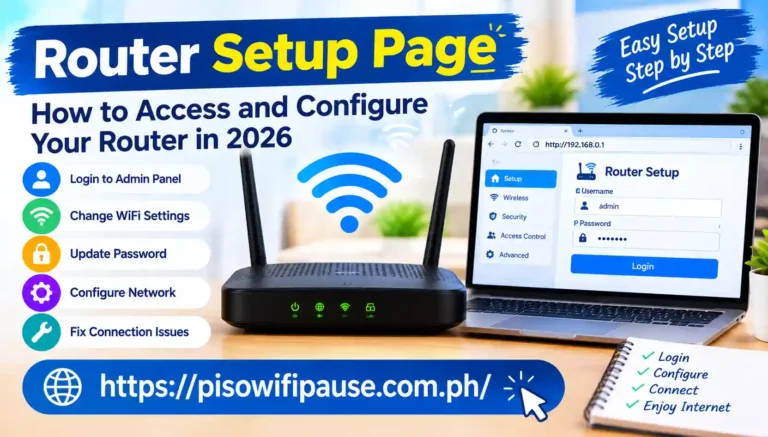
A router setup page is a site admin interface that is integrated into your router. It enables you to manage various sections of your network via the web browser.
It is not an ordinary website; it’s typically part of the router’s website. A computer and/or a phone is typically required to be connected to the router via either a Wi-Fi or Ethernet network.
TP-Link claims that there is no need to have an Internet connection to access its Web Management interface when the device is plugged into the router. (tp-link.com).
Open the Router Setup Page
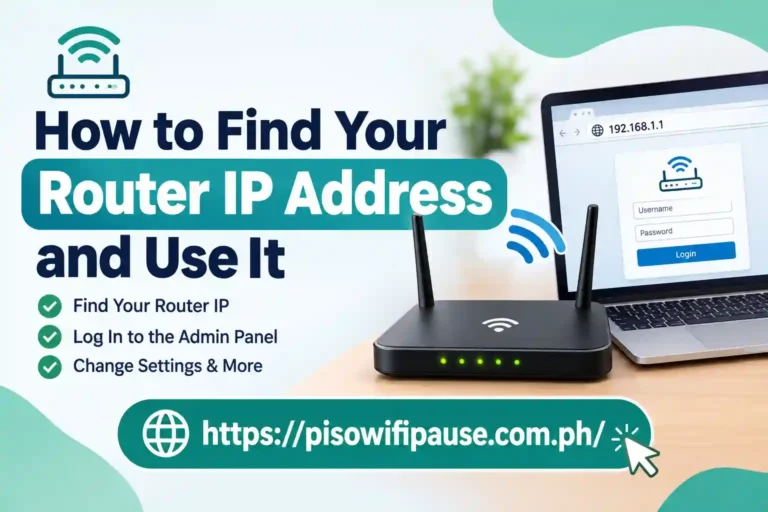
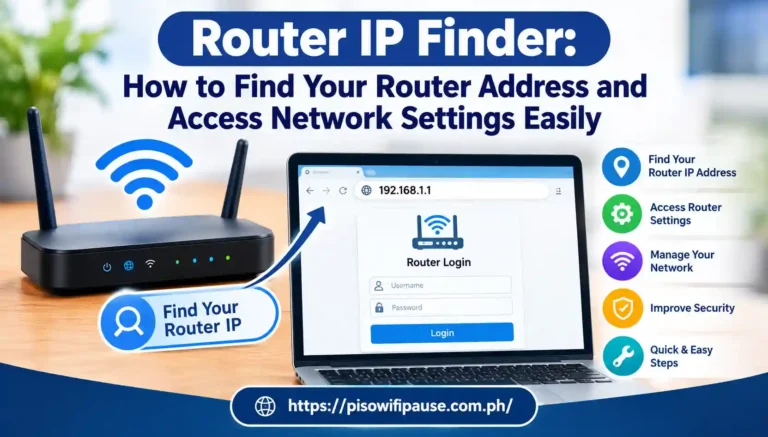
After connecting your device, open Chrome, Edge, Firefox, Safari or another browser. Type the router address directly into the browser address bar. Don’t enter it in Google or another search engine.
In the case of a router with the address 192.168.0.1, type in that address and hit Enter. If you have a local domain name, like tplinkwifi.net provided by your manufacturer, please use it.
If there is no response, check the address, and ensure that your device is connected to the router’s network. Upon reaching the router setup page, you may need to input a username and password for an admin.
The login procedure is different for various brands and models of routers. For instance, TP-Link states that many newer routers require setting a user password when they are first accessed. (tp-link.com)
Configure Your Internet Connection
You should see the setup wizard asking you to set up the internet connection after you log in. The most popular connection types are Dynamic IP, PPPoE and Static IP. Dynamic IP: The router will automatically get network information from the ISP. PPPoE will typically have to use a username/password provided by your ISP, whereas Static IP will need some information provided by the provider.
Most contemporary routers will be able to self-identify the type of connection. Currently, TP-Link’s setup process offers an Auto Detect feature, but manual setup might also be necessary if automatic detection fails. (tp-link.com)
If you have been provided with special connection information by your ISP, have this information available when setting up the connection.
Update Your Router Firmware
The software that controls your router is called firmware. Firmware updates are regularly issued by the manufacturers to enhance performance, resolve bugs, add functionality and improve security.
Once setup is done, navigate to the router’s update section and see if an update is available. There are routers that have the ability to update their firmware automatically. TP-Link’s 2026 setup documentation provides for automatic firmware updates on supported devices. (tp-link.com)
Be sure to install firmware that is specifically for your model and hardware version of the router. The wrong firmware is capable of causing serious issues.
Fix the Router Setup Page
Ensure that your device is plugged into the appropriate router. Then check that you typed the correct local address into the address bar of your browser.
If you are using a VPN/proxy, disable it for a while. TP-Link indicates that VPN and proxy connections can be the cause of issues in accessing the management interface. (tp-link.com)
If the default gateway is not available using the usual IP address, look at the network information of your device to see if there is a default gateway. This will typically be the IP address of the router in use.
Conclusion
The router setup page provides you with access to your home network’s settings. The process for setting up the interface will vary from manufacturer to manufacturer, but the fundamentals are nearly always the same. Connect to the device, locate the correct Router Address, log in, set up the internet connection, set up a secure WiFi network, change the Router Administrator password, update the Router Firmware, and review the Router’s Security Settings.
Do NOT reset the router if the page does not open. Check the connection, verify the IP address, disable the VPN/Proxy, try another browser and use Ethernet if available.
Nowadays, routers also have mobile applications and auto-configuration to facilitate setup. With a couple of minutes spent setting important parameters, you can build a more secure and reliable network that’s ready to go every day.
FAQs
What is a router setup page?
The local management interface that is used to configure a router is a router setup page. It can offer you choices of wireless, Internet configuration, security, DHCP, firmware and other network options.
How do I access my router setup page?
Plug the device into the router and type in the local IP address of the router (which is the first address on the router’s list) into the browser’s address bar. The standard IP addresses are 192.168.0.1 and 192.168.1.1; your router might have a different IP address.
Does the router setup page require internet?
Usually, no. The management interface runs on the router, at its local address. Usually, your device only has to be connected to the router via Wi-Fi or Ethernet. (tp-link.com)