Managing Users on Your WiFi Network
A Simple Guide to Managing Users on Your WiFi Network
What if a neighbor or someone you don’t know gets your WiFi password and begins using your Internet connection without your knowledge or permission? An unknown device can use a lot of bandwidth, slow down your connection and pose an unwanted security threat. Today’s routers allow you to control who is able to use your network. Today’s router Access Control systems typically prevent certain devices from accessing the network with a Deny List/Blacklist and/or allow only certain devices by using an Allow List/Whitelist.
You don’t always have to modify the entire network if you want to allow or block users from accessing WiFi. You can set up access rules for individual devices, use a guest network or manage access via a router app. This guide will answer questions such as where, how and what to do if a device is blocked and how to allow trusted devices.
Managing Users on Your WiFi Network lets you monitor connected devices and control network access. It helps keep your connection organized and secure.
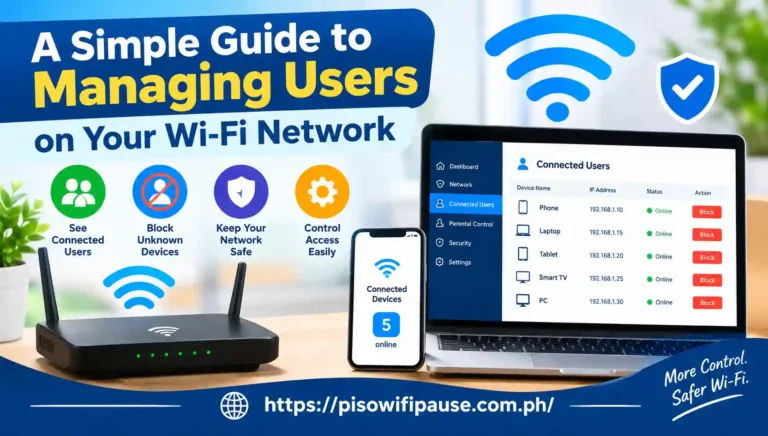
Understanding WiFi access control before making changes
Wireless IDP (Access Control) is a router capability that enables you to set a list of devices, such as smartphones, laptops and similar devices, that are allowed to connect to your network. It can be found under various names like Access Control, MAC Filtering, Device Management, Block List, Allow List, Blacklist or Whitelist, depending on the manufacturer.
There are two principal methods, which are easy. Devices on a blacklist (or deny list) are denied access and other devices are allowed to use the network. An allow list is the inverse of a deny list; only devices on the allow list will be able to connect.
If you have to change anything, you need to know which devices are in your home before you do so. You could end up losing network connectivity for your own cell phone, laptop, printer or smart home devices if you block the wrong one.
With Managing Users on Your WiFi Network, you can identify unknown devices and remove unwanted connections. This can help maintain reliable WiFi performance.
Why do you need to block a WiFi user?
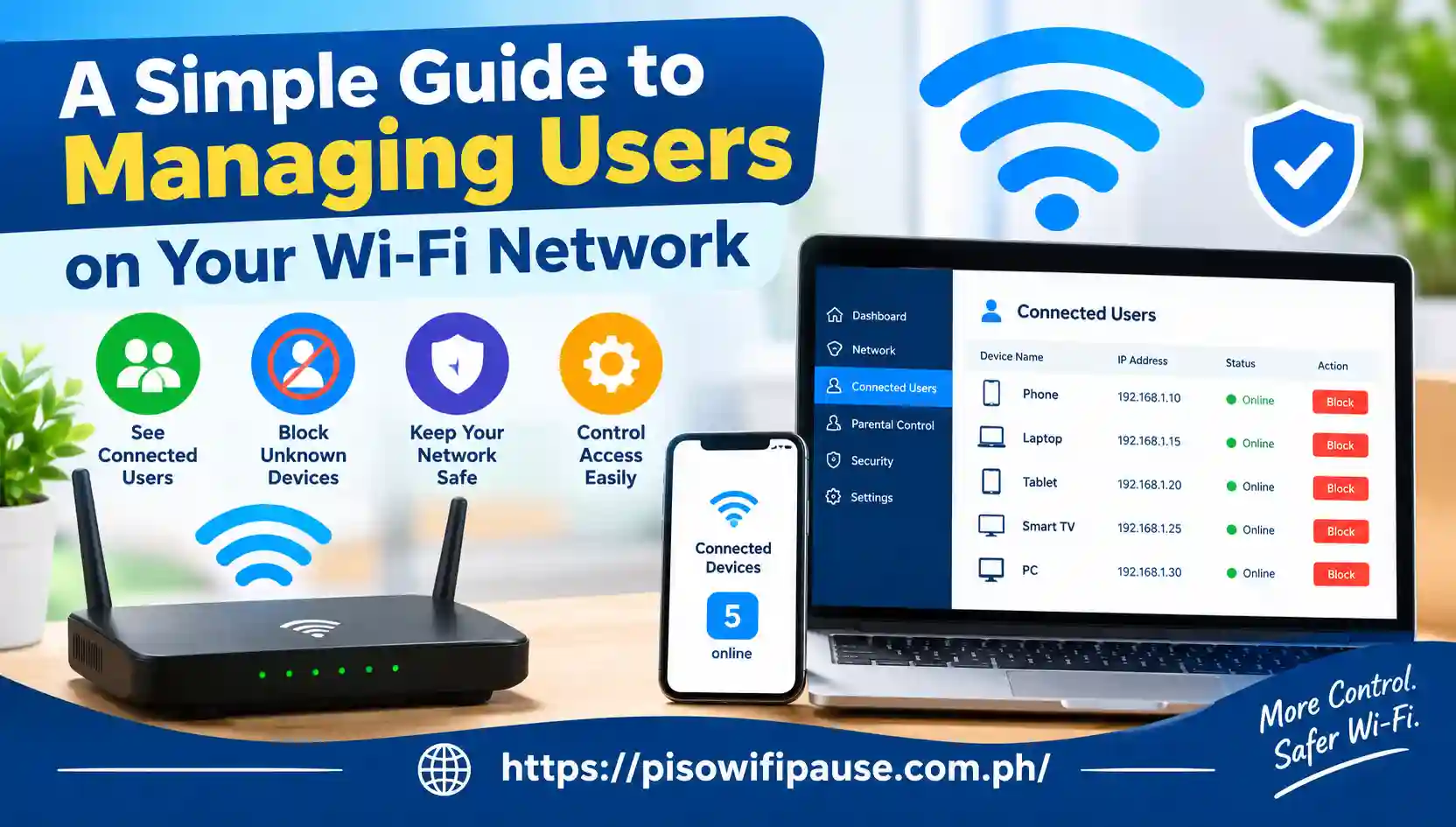
There are a number of reasons to deny access to a device on your wireless network. In the list of the router’s clients, you might see an unknown device. The first step is to see if there are any devices connected to your WiFi network. Log in to your router’s web interface or management application and check for Connected Devices, Online Devices or a similar section.
Information such as the device name, IP address, MAC address, connection type and more is available. Certain names might not have a clear meaning, particularly in the case of smart TVs, cameras, printers, streaming and IoT products.
The other is bandwidth management. Other users may experience reduced performance if large files are being downloaded, streaming or there is another high-bandwidth operation being performed by one of the users.
How to block a user from WiFi?
Firstly, link the phone or computer to the router and then launch the administration interface of the router. Log in with your router administrator’s account.
Then look for the Access Control (or Device Management) section. If your router is a blacklist (or deny list) type, then choose Blacklist or Deny List. Select the device to be blocked from the online device list and save the change.
To enable the deny-list mode on TP-Link routers that are supported, you need to do the following steps: Advanced > Security > Access Control, then to check Access Control and to choose the required deny-list mode.
For those who are accustomed to managing their devices from their mobile phones. You don’t need to use a browser and go through several menus on the router to see what devices are connected and block a device; you might be able to do that directly from your phone.
Managing Users on Your WiFi Network makes it easier to check who is connected to your router. You can manage access through your router’s settings.
How to allow specific users on WiFi?
If you wish to have more control over the devices that can be connected to the network, use an allow list. Rather than listing devices that should be allowed to connect, you will make a list of trusted devices. Once you’ve opened the Access Control part of the router, click on Allow List or Whitelist. Select all the devices approved by the connected-device list or type in their device information.
TP-Link’s current docs say that devices that are not in an Allow List cannot be prevented from connecting to the network even if they are able to detect the wireless network.
There are many access-control systems available for routers that identify the router based on its MAC address. A MAC address is a network identifier that can be found in your router’s connected device list. For instance, in the above example, the router can read A4:5E:60:12:34:56.
Regular Managing Users on Your WiFi Network helps you spot unfamiliar devices quickly. Keeping your WiFi password secure can also reduce unwanted access.
What to do if a blocked device reconnects?
If a device seems to reconnect when it isn’t allowed, check to see if it is indeed the same device. A private WiFi address may be used by a phone/computer, which may have an impact on the recognition of the phone/computer by the network. According to Apple’s current documentation, for instance, there are private Wi-Fi addresses that can be static or rotated on the selected setting.
Look for separate access-control rules for different bands of wireless or for different network modes as well. When the issue persists, it may be helpful to reset the WiFi password and reconnect only trusted devices to create a clean list of registered WiFi devices.
Managing Users on Your WiFi Network to keep connected devices under control. Simple router settings can make network management easier.
Conclusion
You’ll know how to let or deny users access to Piso WiFi, providing you with more control over your home network. Rather than changing the whole network when you notice an unwanted device, you can manage individual devices with the router’s access control.
A blacklist or deny list can be helpful to block certain devices, and an allow list or whitelist can be used to allow access to only certain devices. A router app, guest network, robust WiFi password and periodic device inspections can also help to maintain your network organized.
Keep in mind that different makes and models of the router are different. As of 2026, there are different features and access-control menus between brands, even within the same brand. It is therefore important to check with your specific router to determine what access setting it requires before making a change.
FAQs
Can I block someone from using my WiFi?
Yes. Numerous routers today offer access control or deny list or blacklist or block list options that allow you to deny access to specific devices. This will vary depending on the model of your router.
Can I allow only certain devices to connect to WiFi?
Yes. To restrict access to the network for all devices except those in the Allow List/Whitelist, you can configure the router to include devices that are allowed to connect to the router.
How do I know who is connected to my WiFi?
Check out the Connected Devices, Clients or Online Devices section of your router or the management app of your router. You can then make a comparison between the listed devices and the smart devices, phones and computers in your home.